|
If you experience problems where your browser will not successfully
load and display the mainframe emulator java applet, you first need
to ensure that your computer meets the
system requirements
for the emulator product.
 Updated information as of Sunday, May 5, 2007
The emulator vendor recommends following these steps:
The following information is recommended by the emulator vendor.
to help resolve applet load issues. While these settings have been found
to resolve the applet loading issues on internal BNSF computers, the decision to
change the configuration of a home computer lies solely with the computer owner.
1. Clear
the browser's cache and delete all offline content, close all browser
windows and attempt to access the emulator again.
2. Ensure your computer is up to date with all recommended updates via windowsupdate.com.
3. Install the latest Java Runtime Environment from Sun Microsystems.
4. Advanced Privacy Settings
In Internet Explorer 6.x, the advanced privacy settings can be configured
as follows:
Select Tools -> Internet Options to open the "Internet Options"
dialog window.
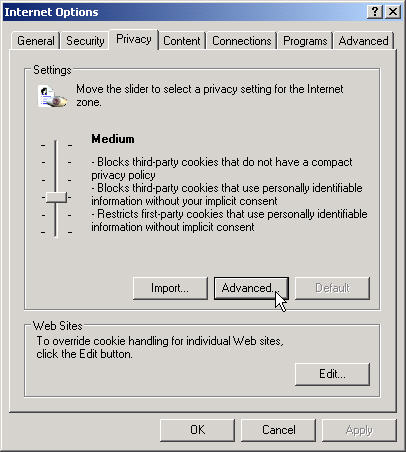
From the Internet Option dialog select the "Privacy Options"
tab as follows:

Next, click the "Advanced" button:
Place a check in the "Override automatic cookie handling"
and
"Always allow session cookies" checkboxes and then click
the "OK" button.

5. Restart the browser and attempt to access the mainframe emulator
again.
|

